

Fintura Sage Integration: Setup Guide for SA Accountants




Step-by-step guide to connect Fintura to Sage Business Cloud. Push invoices from time entries, sync quotes and clients, and automate billing.
On this page
- Fintura Sage Integration: Setup Guide for SA Accounting Firms
- Why SA Accounting Firms Need More Than Sage Alone
- Why Listen to Us?
- Is Sage Enough for Running an SA Accounting Practice?
- What the Fintura-Sage Integration Actually Does
- Client contacts map automatically on connection
- Quotes sync bidirectionally with full lifecycle tracking
- Invoices push from Fintura to Sage with accounts mapped automatically
- Live invoice statuses sync back into Fintura
- Three automation rules that ensure no work goes unbilled
- How to Connect Fintura to Sage: Step-by-Step
- Go to the Billing tab and click Connect with Sage
- Log in to your Sage One SA account
- Review and approve your auto-mapped contacts
- Draft, push, and track quotes inside Sage
- Push invoices to Sage from time entries or accepted quotes
- Configure your three billing automation rules in Settings
- What Changes in Your Practice Once Connected
- Fintura and Sage Integration: Frequently Asked Questions
Published April 2026
Fintura Sage Integration: Setup Guide for SA Accounting Firms
Quick Summary
Connecting Fintura to Sage takes under 10 minutes and uses a native API with no third-party tools required. Once linked, client contacts are mapped automatically, quotes and invoices sync across platforms, and SA accounting firms on the Pro Practice Management plan can push invoices from Fintura straight into Sage. The integration also lets practices automate invoice creation from completed compliance filings and tasks, so no billable work goes unrecorded.
Why SA Accounting Firms Need More Than Sage Alone
Running a South African accounting practice means managing two separate but connected workstreams: the accounting itself and the compliance obligations that sit around it. Sage is built to handle the accounting work exceptionally well, from VAT submissions and bank feeds to management accounts and cash flow. It was not designed to manage CIPC annual returns, Beneficial Ownership declarations, SARS task tracking, or the staff workflows that keep a practice running. Most firms end up maintaining a separate system for compliance alongside Sage, which creates duplicate client records, missed billing, and manual reconciliation between two platforms that do not share data.
This guide covers how to connect Fintura to Sage, what the integration automates, and how to configure the billing rules that ensure no compliance work leaves your practice without an invoice.
Why Listen to Us?
We built Fintura after spending years inside South African accounting practices and seeing the same pattern repeat. Firms ran Sage for the ledger and it kept the books clean, but compliance work still got done without always being billed, client data still lived in multiple places, and practice workflows still happened in spreadsheets around the accounting system. The Sage integration was built to close that loop, not to add another tool to the stack.
Here is what one of our users had to say:
“Fintura App helps manage my practice admin so much. Without it I would have had to run numerous different excel sheets to keep track of deadlines. Highly recommend to anyone in practice or finance management with a group of companies to keep track of deadlines, manage admin and teams. I would not recommend any other platform.”

Is Sage Enough for Running an SA Accounting Practice?
For the accounting work itself, Sage performs well. Financial reporting, reconciliation, VAT submissions, and client invoicing are all handled cleanly. For many SA firms it is the accounting backbone of the practice and has been for years.
Where firms find the boundary is at the practice level. A team member cannot assign a compliance task to a staff member, flag an overdue filing, or connect a paid invoice to the next step in a client workflow inside Sage. These are not gaps in Sage. They are practice management functions that live outside what any accounting system is designed to do.
Fintura fills that space. The two platforms connect through a native API so client records, invoices, and compliance deadlines share a single data layer. The accounting and the practice management run together without duplicate entry or manual reconciliation between systems.
What the Fintura-Sage Integration Actually Does
The integration runs five automated workflows once connected: client contact sync with Create-in-Sage, quote management with full lifecycle tracking, invoice push from approved time entries or accepted quotes, live invoice status sync back into Fintura, and billing automation triggered by compliance activity.
Client contacts map automatically on connection
When you connect Fintura to Sage, the platform automatically matches your existing Fintura clients to their corresponding Sage customers using Auto-Match. You review and approve the pairing before anything is written. New clients added in Fintura after the connection is live are created as Sage customers in one click with the right name, email, VAT number, and billing addresses, so there is no duplicate entry required.
Quotes sync bidirectionally with full lifecycle tracking
Draft quotes inside Fintura and push them to Sage in one click. Every quote is tracked through its full lifecycle: Draft, Accepted, Declined, and Invoiced. Changes made in Fintura flow back to Sage automatically, and Sync from Sage pulls in quotes created on the Sage side. You manage the client engagement flow from one place while Sage remains the quoting record of truth.
Invoices push from Fintura to Sage with accounts mapped automatically
Invoices created in Fintura from approved time entries or accepted quotes are pushed directly to Sage with the correct customer, line items, tax, and document number. Accounts mapping syncs automatically, so your Fintura billable categories land in the right Sage ledger accounts without manual setup. Your chart of accounts stays consistent and your billing records in Sage reflect exactly what was raised in Fintura.
Live invoice statuses sync back into Fintura
Invoice History inside Fintura mirrors what Sage shows: Paid, Overdue, or Unpaid, updated every time you sync. Click the external-link icon on any row to jump straight to that invoice in Sage.
Lapsed company alert: Sage suspends API access the moment a client's company registration lapses. Fintura surfaces a single clear alert with a one-click link to renew that company in Sage, so you know exactly which client needs attention instead of seeing a generic sync error.
Three automation rules that ensure no work goes unbilled
Fintura's billing automation turns compliance activity and invoice status changes into the next piece of client work automatically. The first rule creates a Fintura task with subtasks when Sage marks an invoice paid, ready for the client team to pick up at the next sync. The second rule raises an invoice in Sage the moment a Fintura task is marked complete. The third rule does the same for compliance filings: once a CIPC, Beneficial Ownership, or SARS filing is lodged, an invoice pushes to Sage and goes out to the client without manual intervention.
How to Connect Fintura to Sage: Step-by-Step
The full setup takes under 10 minutes. You will need your Sage One SA login credentials and admin permission in the Fintura workspace you are connecting.
- 1
Go to the Billing tab and click Connect with Sage
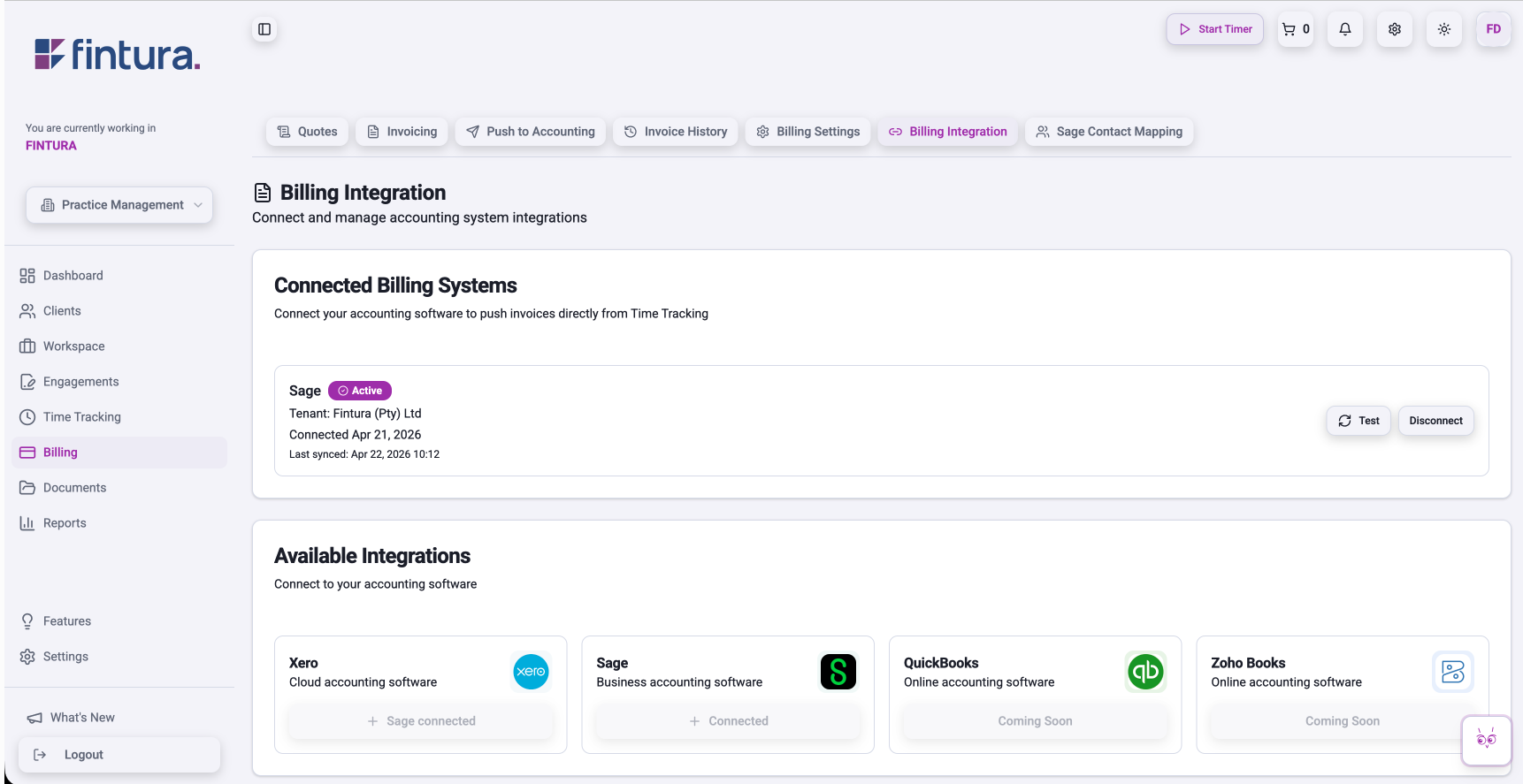
In your Fintura dashboard, open the Billing tab in the left nav. Click Billing Integration and select Connect with Sage to begin the authorisation process.
- 2
Log in to your Sage One SA account
You will be redirected to the Sage One SA sign-in page. Log in with your Sage username and password. If your Sage login gives you access to more than one company, Fintura asks which one to connect before continuing.
- You only need to authorise once per Fintura workspace
- Each Fintura workspace connects to one Sage company at a time
- 3
Review and approve your auto-mapped contacts
Fintura opens Sage Contact Mapping with Auto-Match suggestions for every Fintura client it can pair to an existing Sage customer. Review the suggested matches, adjust where needed, and click Create in Sage for any Fintura client that does not yet exist on the Sage side. Fintura then creates the customer with the right name, email, VAT number, and addresses in one click.
- 4
Draft, push, and track quotes inside Sage
Create quotes in Fintura and push them to Sage. Track each quote through the full lifecycle: Draft, Accepted, Declined, and Invoiced. Sync from Sage pulls in quotes drafted on the Sage side, so both sets of records stay aligned.
- 5
Push invoices to Sage from time entries or accepted quotes
Invoices created in Fintura from approved time entries or accepted quotes push directly into Sage with the correct customer, line items, tax, and document number. Accounts mapping syncs automatically on the first push, so your Fintura billable categories always land in the right Sage ledger accounts.
- 6
Configure your three billing automation rules in Settings
Open Settings in Fintura and enable the three automation rules that make the integration do real work:
- Create Task from Paid Invoice. Sage marks an invoice paid, Fintura creates a task with subtasks for the next client action
- Invoice on Task Complete. Completing a Fintura task raises an invoice in Sage automatically
- Invoice on Compliance Filing Complete. A completed CIPC, Beneficial Ownership, or SARS filing pushes an invoice to Sage and out to the client
What Changes in Your Practice Once Connected
Client onboarding stops requiring data entry in two places. A new client added in Fintura is created in Sage automatically with the correct name, email, VAT number, and billing addresses. You start invoicing the same day a client signs rather than waiting for someone on the team to recreate the record in Sage.
Billing tied to completed work happens in real time. Time tracked against CIPC filings, compliance tasks, and client work converts into a Sage invoice the moment the work is marked complete. When Sage then marks that invoice paid, Fintura creates the next piece of client work as a task with subtasks for the team, ready to pick up.
The Sage ledger and your practice management run from a single data layer. Your Sage books stay the source of truth for the accounting. Your Fintura workspace stays the source of truth for clients, compliance, tasks, and time. Both are always in sync, and lapsed registrations surface inside Fintura with one-click renewal links so the billing loop never breaks silently.
Ready to see the Sage integration configured for your practice workflows?
Fintura and Sage Integration: Frequently Asked Questions
How long does it take to connect Fintura to Sage?+
The full setup takes under 10 minutes. You open the Billing tab in Fintura, click Billing Integration, select Connect with Sage, sign in with your Sage One SA credentials, pick the company if you have more than one, approve your auto-mapped contacts, and configure your three billing automation rules in Settings. Once done, invoices, quotes, and statuses sync both ways automatically.
What compliance workflows does Fintura handle that Sage does not?+
Fintura runs the practice management layer that sits around the accounting ledger. That includes:
- CIPC annual returns and Beneficial Ownership declarations filed in-platform
- Director, share, and company change submissions to CIPC
- SARS compliance task management and calendars
- COIDA and DOL submissions
- Engagement letter generation with legally valid e-signatures
- Time tracking against every compliance task, pushed to Sage as an invoice
What happens to my existing Sage contacts when I connect Fintura?+
Nothing is deleted or overwritten. When you connect, Fintura Auto-Match pairs your Fintura clients to existing Sage customers and presents the matches for your review. You approve or adjust each one before anything is written. For clients who do not yet exist on the Sage side, Create in Sage adds them with name, email, VAT number, and addresses in a single click.
Which Fintura plan includes the Sage integration?+
The Sage integration is available to all Pro users on the Practice Management plan. It is included at no additional cost once you are on Pro or higher. See pricing for full plan detail.
Does the Fintura Sage integration work with Sage Business Cloud or Sage Pastel Partner?+
The integration works with Sage Business Cloud Accounting (Sage One SA) for cloud users. Sage Pastel Partner desktop is not currently supported because the integration uses the Sage Business Cloud API. If you run Pastel Partner, the Fintura practice management side still works fully. The Sage billing connection activates once you move to Sage Business Cloud.
What happens when a client's Sage API access is suspended?+
Sage suspends API access the moment a company's registration lapses. Fintura surfaces a single clear alert with a one-click link to renew that company in Sage, so you know exactly which client needs attention instead of decoding a generic sync error. The billing loop resumes automatically once the registration is restored.
Keep reading

VAT201 returns for every client: how accounting firms prepare, approve and submit in bulk
An accounting firm does not file one VAT201. It files one per VAT-registered client, from different ledgers, due on the same day. Here is how a firm prepares, gets approval, submits, loads payment and sends receipts for every client's VAT201 in one run, with the SARS due dates and categories as a reference.
Read moreFintura Xero Integration: Setup Guide for SA Accounting Firms
Most SA accounting firms run Xero for billing and a separate tool for compliance and tasks. This guide covers how to connect Fintura to Xero via native API, automate your task-to-billing workflow, and ensure no completed work leaves your practice without an invoice.
Read more5 Best Practice Management Software for South African Accountants in 2026
The 5 best practice management software options for South African accounting firms in 2026. Comparing: Fintura, DataGrows, GreatSoft, SmartPractice and InfoDocs across CIPC automation, Xero integration, pricing and practice management scope.
Read morePut the reading into practice.
Start for free in minutes, or book a demo to see Fintura on your own portfolio.
